Native messaging
Native messaging enables an extension to exchange messages with a native application installed on the user's computer. You can use this feature to retrieve details from a local app, rather than accessing the web.
For example, in a password manager, the native application manages, stores, and encrypts passwords. The extension then communicates with the native application to save and retrieve details to populate web forms.
Native messaging also enables extensions to access resources not accessible through WebExtension APIs (e.g., specific hardware).
The native application isn't installed or managed by the browser. The native application must be installed using the operating system's usual installation mechanism.
Overview
A JSON file called the "host manifest" or "app manifest" describes how the browser can connect to the native application. The local app installs this JSON file in an operating system-specific location.
The extension must request the "nativeMessaging" permission or optional permission in its manifest.json file. Also, the native application must grant permission for the extension by including the extension's ID in the "allowed_extensions" field of the app manifest.
The extension exchanges JSON messages with the native application using functions in the runtime API. On the native app side, messages are received using standard input (stdin) and sent using standard output (stdout).
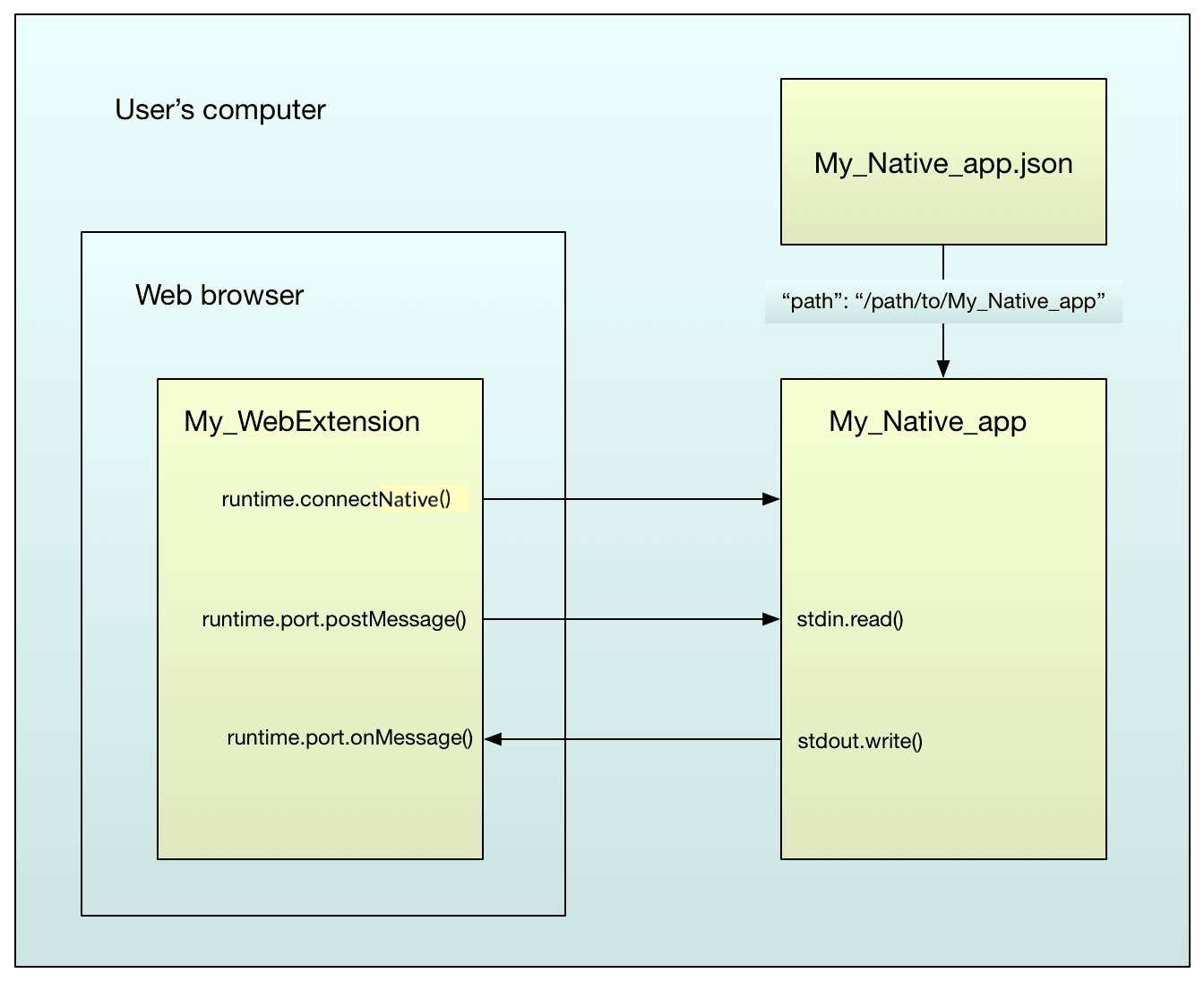
Support for native messaging in extensions is mainly compatible with Chrome, with two main differences:
- The app manifest lists
allowed_extensionsas an array of app IDs, while Chrome listsallowed_originsas an array of"chrome-extension"URLs. - The app manifest is stored in a different location compared to Chrome.
There's a complete example in the native-messaging directory of the webextensions-examples repository on GitHub. Most of the code in this article is from that example.
Setup
Extension manifest
To enable communication with a native application, the extension's manifest.json file must:
- Set the
"nativeMessaging"permission or optional permission. - Specify an add-on ID using the
browser_specific_settingsmanifest key. (The native app's manifest uses this ID to identify that the extension is allowed to connect.)
Example manifest.json file:
{
  "description": "Native messaging example add-on",
  "manifest_version": 3,
  "name": "Native messaging example",
  "version": "1.0",
  "icons": {
    "48": "icons/message.svg"
  },

  "browser_specific_settings": {
    "gecko": {
      "id": "native-messaging@mozilla.org",
      "data_collection_permissions": {
        "required": ["none"]
      },
      "strict_min_version": "50.0"
    }
  },

  "background": {
    "scripts": ["background.js"]
  },

  "action": {
    "default_icon": "icons/message.svg"
  },

  "permissions": ["nativeMessaging"]
}
Note:
When using optional permission, before communicating with the native application, check that permission is granted and, where necessary, request permission from the user with the permissions API.
App manifest
The app manifest describes how the browser can connect to the native application.
The browser reads and validates app manifest files, but it does not install or manage them; native applications must install them. This requirement stems from the security model for when and how these files are installed and updated, which is much more like that for native applications than for extensions using WebExtension APIs.
For details of native app manifest syntax and location, see Native manifests.
For example, here's a manifest for the "ping_pong" native application:
{
  "name": "ping_pong",
  "description": "Example host for native messaging",
  "path": "/path/to/native-messaging/app/ping_pong.py",
  "type": "stdio",
  "allowed_extensions": ["native-messaging@mozilla.org"]
}
This manifest allows the extension with the ID "native-messaging@mozilla.org" to connect by passing the name "ping_pong" to the relevant runtime API function. The application itself is at "/path/to/native-messaging/app/ping_pong.py".
Note:
Chrome identifies allowed extensions with another key: allowed_origins, using the ID of the WebExtension. Refer to Chrome documentation for more details and see the Chrome incompatibilities section.
Windows setup
This section describes the window-specific setup requirements. These requirements are also described in the readme of the native messaging extension on GitHub. After forking this repository on a Windows machine, you can check your setup by running check_config_win.py.
App manifest
In the example extension, the native application is a Python script. It can be challenging to get Windows to run Python scripts reliably. An alternative is to provide a .bat file, and link to that from the application's manifest:
{
  "name": "ping_pong",
  "description": "Example host for native messaging",
  "path": "c:\\path\\to\\native-messaging\\app\\ping_pong_win.bat",
  "type": "stdio",
  "allowed_extensions": ["native-messaging@mozilla.org"]
}
(See note above about Chrome compatibility regarding the allowed_extensions key and its counterpart in Chrome).
The batch file then invokes the Python script:
@echo off

python -u "c:\\path\\to\\native-messaging\\app\\ping_pong.py"
Registry
The browser finds the extension based on registry keys located in a specific location. You need to add them either programmatically with your final application or manually if you are using the example from GitHub. For more details, refer to Manifest location.
For the ping_pong example, when using Firefox (see this page for Chrome), you must create one of these registry entries for the messaging to work:
HKEY_CURRENT_USER\Software\Mozilla\NativeMessagingHosts\ping_pongHKEY_LOCAL_MACHINE\Software\Mozilla\NativeMessagingHosts\ping_pong
The default value for the key must be the path to the application manifest: e.g., C:\Users\<myusername>\webextensions-examples\native-messaging\app\ping_pong.json.
Note:
If you base your work on the GitHub example, read this part of the readme and check the output of check_config_win.py before installing the extension in your browser.
Exchanging messages
When the setup is complete, an extension can exchange JSON messages with a native application.
Extension side
An extension cannot use native messaging in content scripts. It must do it indirectly using background scripts.
There are two patterns available: connection-based messaging and connectionless messaging.
Connection-based messaging
With this pattern, your extension calls runtime.connectNative(), passing the name of the application (the value of the "name" property in the app's manifest). This API launches the application if it's not running and returns a runtime.Port object to the extension.
Two arguments are passed to the native app when it starts:
- The complete path to the app manifest.
- The ID (as given in the browser_specific_settings
manifest.jsonkey) of the extension that started it.
Note: Chrome handles the passed arguments differently:
- On Linux and Mac, Chrome passes one argument: the origin of the extension that started it (in the form
chrome-extension://[extensionID]). This information enables the app to identify the extension. - On Windows, Chrome passes two arguments: the first is the origin of the extension, and the second is a handle to the Chrome native window that started the app.
The application runs until the extension calls Port.disconnect() or the page that connected to it is closed.
To send messages using Port, the extension calls postMessage() passing the JSON message to send. To listen for messages on Port, the extension adds a listener with onMessage.addListener().
Here's an example background script that establishes a connection with the "ping_pong" app, listens for messages from it, then sends it a "ping" message whenever the user clicks the browser action:
/*
On startup, connect to the "ping_pong" app.
*/
let port = browser.runtime.connectNative("ping_pong");

/*
Listen for messages from the app.
*/
port.onMessage.addListener((response) => {
  console.log(`Received: ${response}`);
});

/*
On a click on the browser action, send the app a message.
*/
browser.action.onClicked.addListener(() => {
  console.log("Sending:  ping");
  port.postMessage("ping");
});
To learn about debugging background scripts and viewing console output, see Debugging background scripts on Extension Workshop.
Connectionless messaging
With this pattern you call runtime.sendNativeMessage(), passing it:
- The name of the application.
- The JSON message to send.
- Optionally, a callback.
This call creates a new instance of the app for each message. The app passes two arguments when starting:
- The complete path to the app manifest.
- The ID (as given in the browser_specific_settings manifest.json key) of the extension that started it.
The app treats the first message sent as a response to the sendNativeMessage() call, and the API passes it into the callback.
Here's the connection-based example rewritten to use runtime.sendNativeMessage():
function onResponse(response) {
  console.log(`Received ${response}`);
}

function onError(error) {
  console.log(`Error: ${error}`);
}

/*
On a click on the browser action, send the app a message.
*/
browser.action.onClicked.addListener(() => {
  console.log("Sending:  ping");
  let sending = browser.runtime.sendNativeMessage("ping_pong", "ping");
  sending.then(onResponse, onError);
});
App side
The application uses standard input to receive messages and standard output to send them. It must serialize each message as UTF-8 encoded JSON, preceded by an unsigned 32-bit value containing the message length in native byte order.
The native application can send messages of up to 1 MB and receive messages of up to 4 GB.
This Node.js code, nm_nodejs.mjs, is an example of sending and receiving messages:
#!/usr/bin/env -S /full/path/to/node

import fs from "node:fs/promises";

async function getMessage() {
  const header = new Uint32Array(1);
  await readFullAsync(1, header);
  const message = await readFullAsync(header[0]);
  return message;
}

async function readFullAsync(length, buffer = new Uint8Array(65536)) {
  const data = [];
  while (data.length < length) {
    const input = await fs.open("/dev/stdin");
    const { bytesRead } = await input.read({ buffer });
    await input.close();
    if (bytesRead === 0) {
      break;
    }
    data.push(...buffer.subarray(0, bytesRead));
  }
  return new Uint8Array(data);
}

async function sendMessage(message) {
  const header = Buffer.from(new Uint32Array([message.length]).buffer);
  const stdout = process.stdout;
  await stdout.write(header);
  await stdout.write(message);
}

while (true) {
  try {
    const message = await getMessage();
    await sendMessage(message);
  } catch (e) {
    console.error(e);
    process.exit(1);
  }
}
Here's another example written in Python. It listens for messages from the extension. Note that the file has to be executable on Linux. If the message is "ping", it responds with "pong".
This is the Python 2 version:
#!/usr/bin/env -S python2 -u

# Note that running python with the `-u` flag is required on Windows,
# to ensure that stdin and stdout are opened in binary, rather than
# text, mode.

import json
import sys
import struct

# Read a message from stdin and decode it.
def get_message():
    raw_length = sys.stdin.read(4)
    if not raw_length:
        sys.exit(0)
    message_length = struct.unpack('=I', raw_length)[0]
    message = sys.stdin.read(message_length)
    return json.loads(message)

# Encode a message for transmission.
def encode_message(message_content):
    # https://docs.python.org/3/library/json.html#basic-usage
    # To get the most compact JSON representation, you should specify
    # (',', ':') to eliminate whitespace.
    # We want the most compact representation because the browser rejects
    # messages that exceed 1 MB.
    encoded_content = json.dumps(message_content, separators=(',', ':'))
    encoded_length = struct.pack('=I', len(encoded_content))
    return {'length': encoded_length, 'content': encoded_content}

# Send an encoded message to stdout.
def send_message(encoded_message):
    sys.stdout.write(encoded_message['length'])
    sys.stdout.write(encoded_message['content'])
    sys.stdout.flush()

while True:
    message = get_message()
    if message == "ping":
        send_message(encode_message("pong"))
In Python 3, the code must decode the received binary data into a string. The content the code sends back to the extension must be encoded into binary data using a struct:
#!/usr/bin/env -S python3 -u

# Note that running python with the `-u` flag is required on Windows,
# to ensure that stdin and stdout are opened in binary, rather than
# text, mode.

import sys
import json
import struct

# Read a message from stdin and decode it.
def getMessage():
    rawLength = sys.stdin.buffer.read(4)
    if len(rawLength) == 0:
        sys.exit(0)
    messageLength = struct.unpack('@I', rawLength)[0]
    message = sys.stdin.buffer.read(messageLength).decode('utf-8')
    return json.loads(message)

# Encode a message for transmission.
def encodeMessage(messageContent):
    # https://docs.python.org/3/library/json.html#basic-usage
    # To get the most compact JSON representation, you should specify
    # (',', ':') to eliminate whitespace.
    # We want the most compact representation because the browser rejects # messages that exceed 1 MB.
    encodedContent = json.dumps(messageContent, separators=(',', ':')).encode('utf-8')
    encodedLength = struct.pack('@I', len(encodedContent))
    return {'length': encodedLength, 'content': encodedContent}

# Send an encoded message to stdout
def sendMessage(encodedMessage):
    sys.stdout.buffer.write(encodedMessage['length'])
    sys.stdout.buffer.write(encodedMessage['content'])
    sys.stdout.buffer.flush()

while True:
    receivedMessage = getMessage()
    if receivedMessage == "ping":
        sendMessage(encodeMessage("pong"))
Closing the native app
If the extension connected to the native application using runtime.connectNative(), then the native application runs until the extension calls Port.disconnect() or the page that connected to it is closed. If the extension started the native application using runtime.sendNativeMessage(), the native application is closed after it sends a response.
To close the native application:
- On *nix systems like macOS and Linux, the browser sends
SIGTERMto the native application, thenSIGKILLafter the application has had a chance to exit gracefully. These signals propagate to any subprocesses unless they break away into a new process group. - On Windows, the browser puts the native application's process into a Job object and kills the job. If the native application launches additional processes and wants them to remain open after Windows kills the native application, then the native application must launch the processes with the
CREATE_BREAKAWAY_FROM_JOBflag, such as by usingCreateProcess.
Troubleshooting
If native messaging doesn't work as expected, check the browser console. If the native application sends any output to stderr, the browser redirects it to the browser console. If the extension launched the native application, you see any error messages it emits.
If the extension hasn't managed to run the application, you see an error message providing information about the problem.
"No such native application <name>"
For this error:
- Check that the name passed to
runtime.connectNative()matches the name in the app manifest - On macOS/Linux, check that the:
- Name of the app manifest is
<name>.json. - Native application's manifest file location is as mentioned in the native manifests reference.
- Name of the app manifest is
- On Windows, check that the:
- Registry key is in the correct place, and its name matches the name in the app manifest.
- Path given in the registry key points to the app manifest.
"Error: Invalid application <name>"
For this error:
- Check that the application's name contains no invalid characters.
"'python' is not recognized as an internal or external command, ..."
For this error:
- Windows: if your application is a Python script, check that you have Python installed and have your path set up for it.
"File at path <path> does not exist, or is not executable"
If you see this, then the app manifest has been found. Check that:
- The "path" in the app's manifest is correct.
- On Windows: you've escaped the path separators (
"c:\\path\\to\\file"). - The app is at the location pointed to by the
"path"property in the app's manifest. - The app is executable.
"This extension does not have permission to use native application <name>"
For this error:
- Check that the
"allowed_extensions"key in the app manifest contains the add-on's ID.
"TypeError: browser.runtime.connectNative is not a function"
For this error:
- Check that the extension has the
"nativeMessaging"permission.
"[object Object] NativeMessaging.jsm:218"
There was a problem starting the application.
Chrome incompatibilities
There are some differences between browsers that affect native messaging in web extensions, including the arguments passed to the native app, the location of the manifest file, etc. The Native messaging section of the Chrome incompatibilities article describes these differences.